
Fix a Dead Office Network in 10 Minutes: Cable-to-Ping Drills
Office WiFi drops mid-meeting, and the room goes silent. While others panic, a trained technician traces the silence to a single loose Cat6 cable in the server closet.
Modern computer network support specialist training moves beyond theory, putting virtual cable testers and command-line interfaces on your desk from day one. You learn to ping 192.168.1.1 with the persistence of a heartbeat until the network breathes again.
It’s about the tactile satisfaction of a “click” and the logic of a clean data packet.
Start with Cable Checks in Training
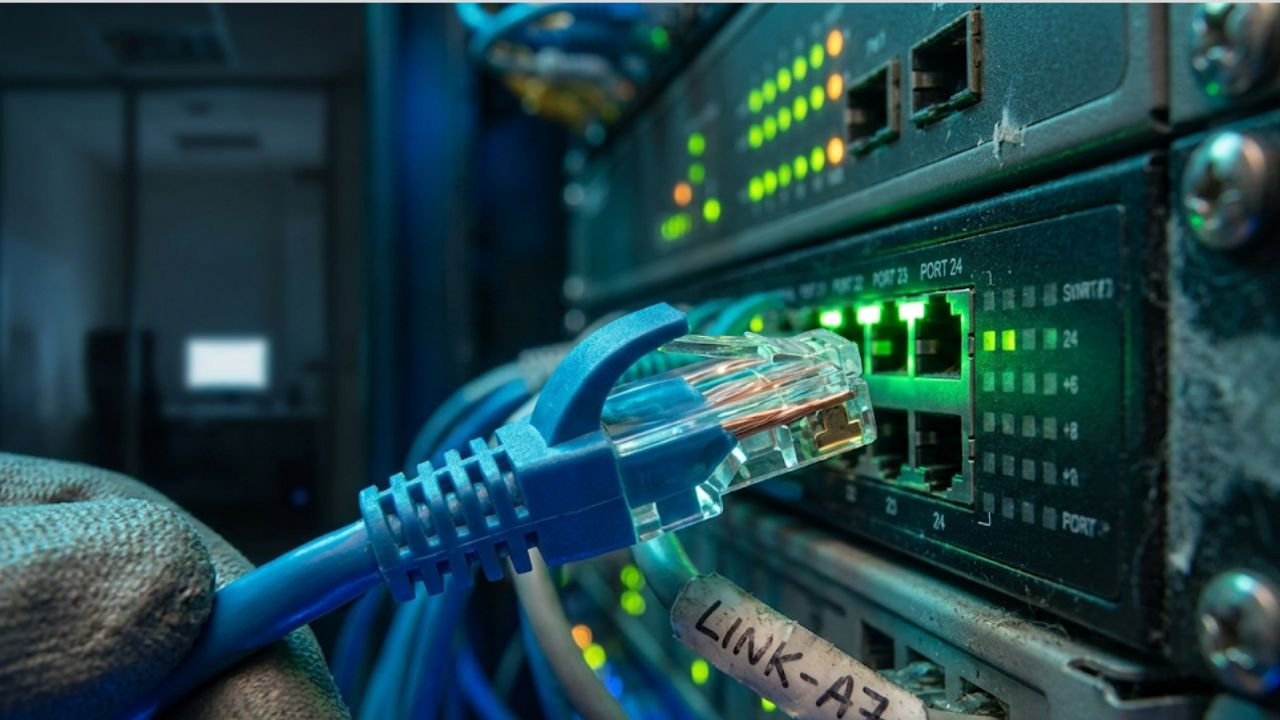
Any reputable computer network support specialist training kicks off with the physical layer. You learn to strip outer jackets, align color-coded strands to the T568B wiring standard, and crimp RJ45 ends with precision.
So, when you plug that custom cable into a high-density switch and the LEDs blink a steady green, you’ve mastered the most common point of failure. What this means: you can spot micro-splits or bad terminations before they snowball into full-company outages.
Quick Fix Table
| Symptom | Tool & Action | Pass Check |
| No Link Light | Fluke tester on Cat6 | Tone shows no breaks/shorts |
| Slow LAN | Swap patch cable (Cat5e to Cat6) | Speedtest hits 1Gbps+ |
| VLAN Mismatch | Console command show vlan | Port assigned to VLAN 10 |
Syllabus: Ping-to-Repair Steps
The curriculum focuses on the “ping-plot” flow—a logical ladder used to climb out of connectivity holes. It begins with the basics: pinging 8.8.8.8 to verify the outside world and reading the TTL=64 reply like a doctor reads a pulse.
- Week 1 & 2: Master IP basics and the ARP (Address Resolution Protocol) table. If there’s no ARP entry, you learn to clear the table and force a re-discovery.
- Switch Management: Use show interface fastethernet 0/1 to check for duplex mismatches that cause “lag.”
- Hardware Labs: Practice the punchdown on a 110-block for a 48-port patch panel, ensuring clean connections for high-traffic environments.
- Advanced Diags: Run Wireshark to filter ICMP drops and backup critical router configurations via TFTP (Trivial File Transfer Protocol).
- Repetition: Expect 10-15 reps per fault type to ensure your response is automatic.
Virtual Racks for Real Fixes
Virtual labs now spin up full Cisco IOS environments where you can safely “erase vlan.dat” or reload a core switch without taking an actual business offline. In these sims, you might manage a 100-node office like a typical IUSA branch, handling everything from DHCP pools to static routes.
So, when a simulated outage hits, you follow the Layered Troubleshooting Flow:
- Layer 1 (Physical): Tug cables, reseat SFP modules, and check power bricks.
- Layer 2 (Data Link): Run show cdp neighbors to see if the adjacent switch is “talking.”
- Layer 3 (Network): No route found? Add a static route or fix the gateway.
This systematic approach restores connectivity in minutes rather than hours.
Mastering WiFi 6 and 2026 Standards
As we move into 2026, network specialists must also juggle WiFi 6E and WiFi 7 deployments. Training now includes managing the 6GHz band to avoid interference in crowded office buildings. You’ll learn to use heat maps to place Access Points (APs) so that a 50-PC LAN stays stable even during 4K video conferencing. It’s no longer just about the wires; it’s about managing the invisible spectrum with the same “cable-to-ping” discipline.
Test Your Own LAN
Start your journey at home. If your router stops responding, don’t just “unplug it and pray.” Log in to the admin console, check the logs for “Timeouts,” and try to ping your gateway.
So, grab a crimper and a spare length of Cat6 tonight. Practice making a patch cable, then use a tool like nmap to map the 5 or 10 devices on your home network. Seeing the digital map of your own house is the first step toward managing a global data center.